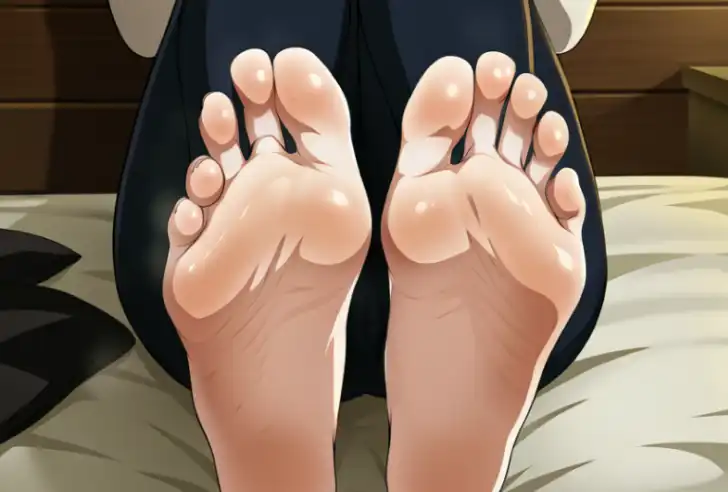
Prompt
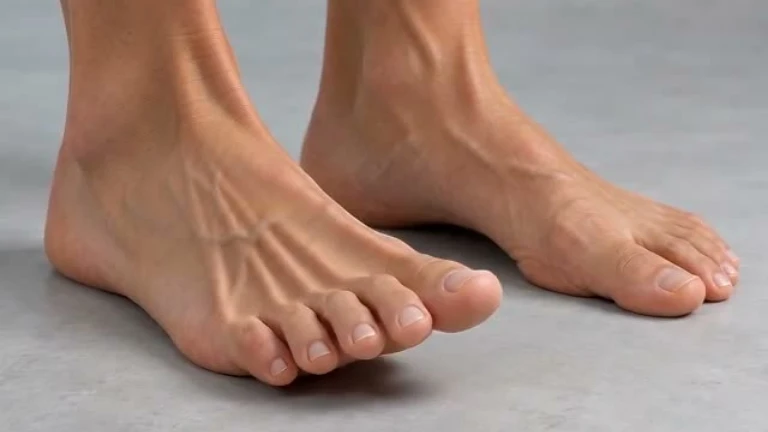
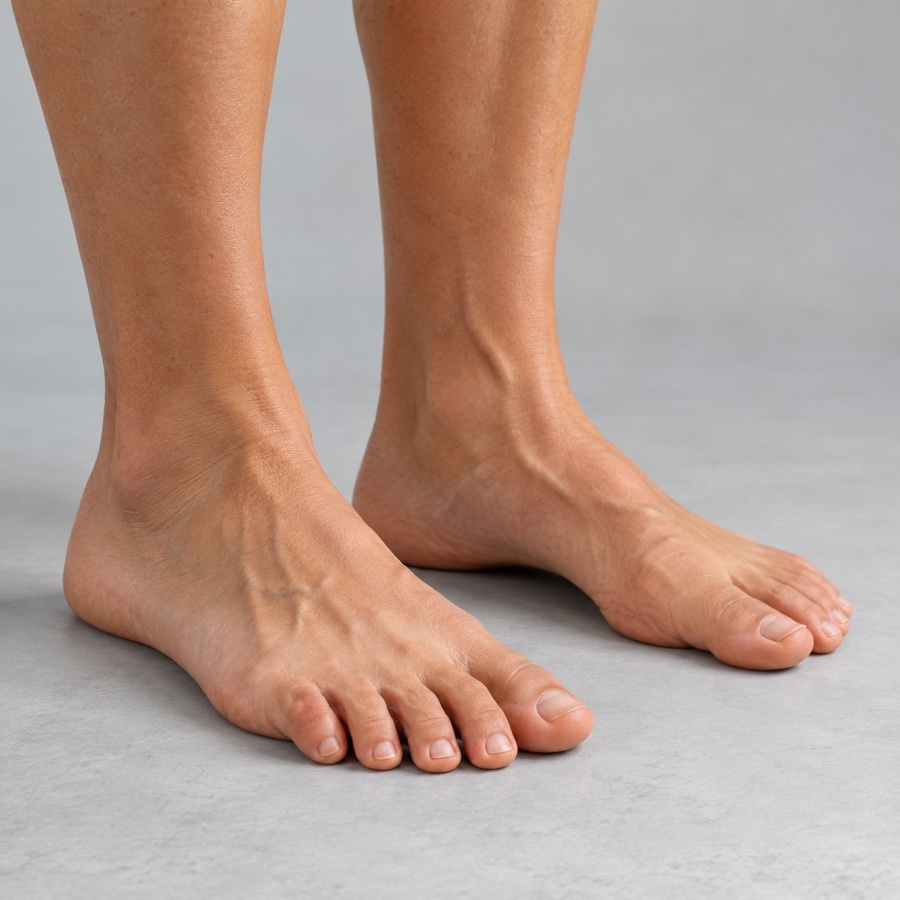
Template 1 of 2Photographic foot anatomy study on a neutral studio floor. Show both adult feet naturally planted in soft daylight, at a three-quarter angle.
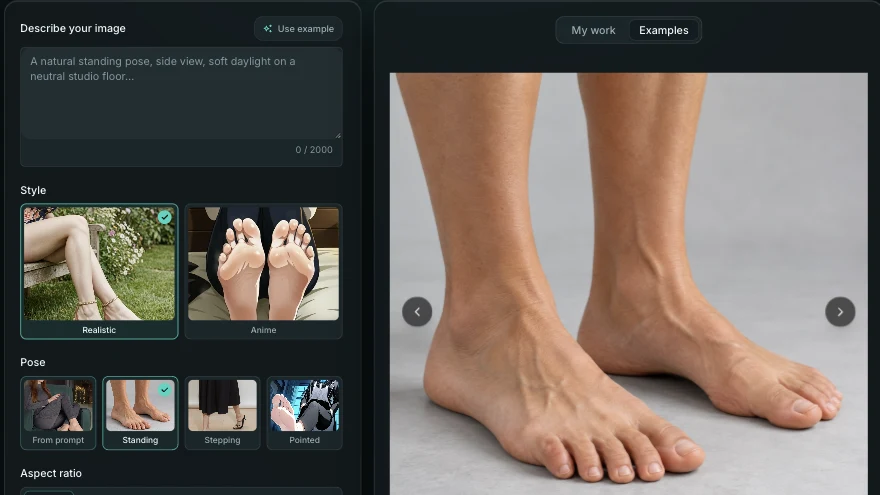
AI Feet Generator creates clean realistic or anime foot references—describe the pose, choose a style, and skip stock searches or awkward shoots.
Drawing foreshortened ankles, balanced five-toe spacing, or open-toe footwear from imagination stalls figure studies, while generic feet AI filters blur arches or merge toes. Load any verified AI Feet Generator recipe below to populate the workbench with matching pose and style controls.
Standing AnatomyThree-quarter view of adult bare feet standing naturally on a matte light-gray studio floor, soft diffused side daylight, crisp ankle bones and balanced five-toe spacing.
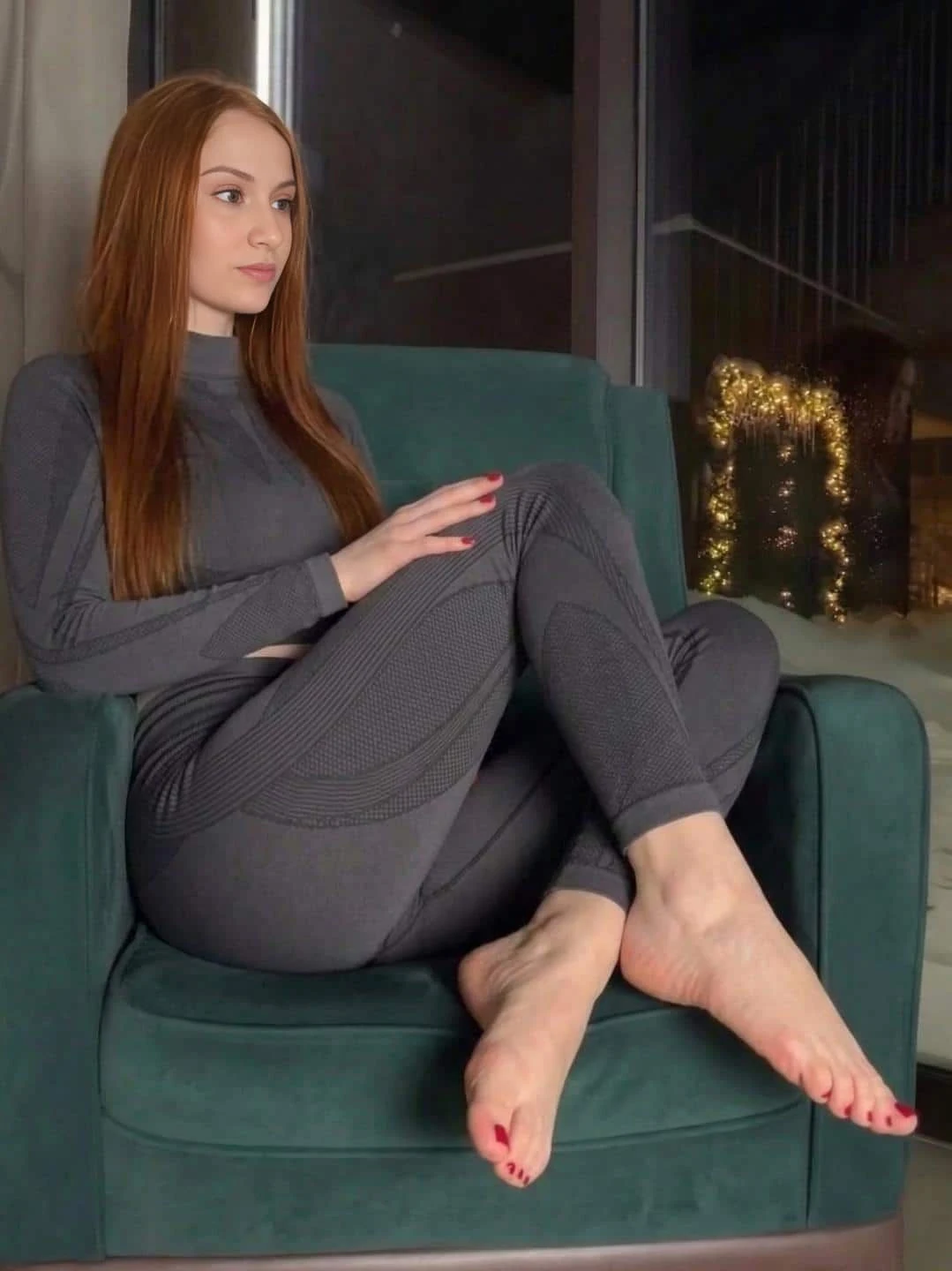 Seated Profile
An adult seated on a dark green chair, one foot resting lower than the other, soft indoor light, relaxed ankles, and the feet visible in profile.
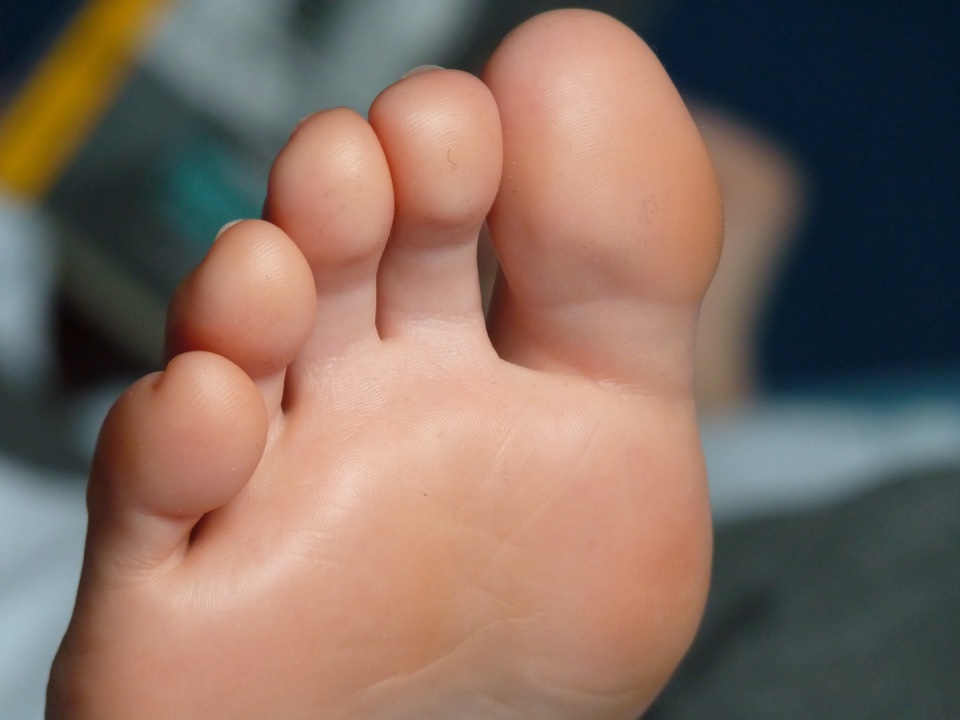 Forefoot Close-Up
Photographic close-up of relaxed bare feet resting on warm studio linen, clear arch curve, natural toe proportions, and soft directional daylight.
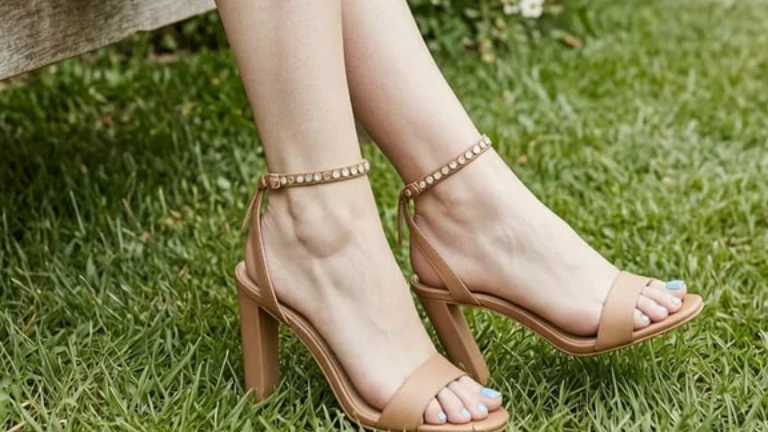 Footwear Concept
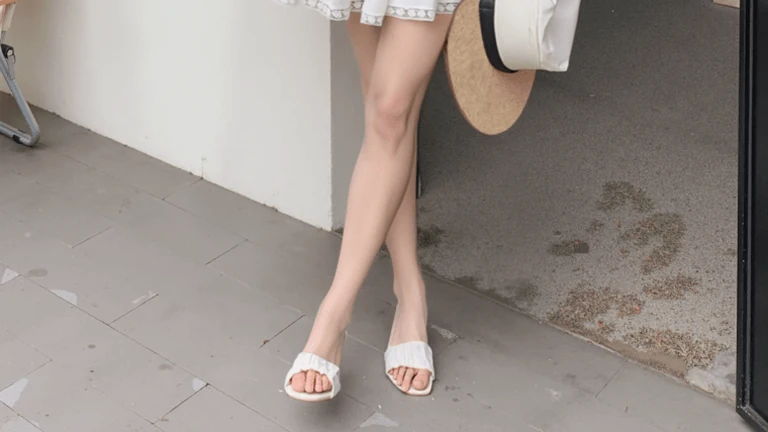
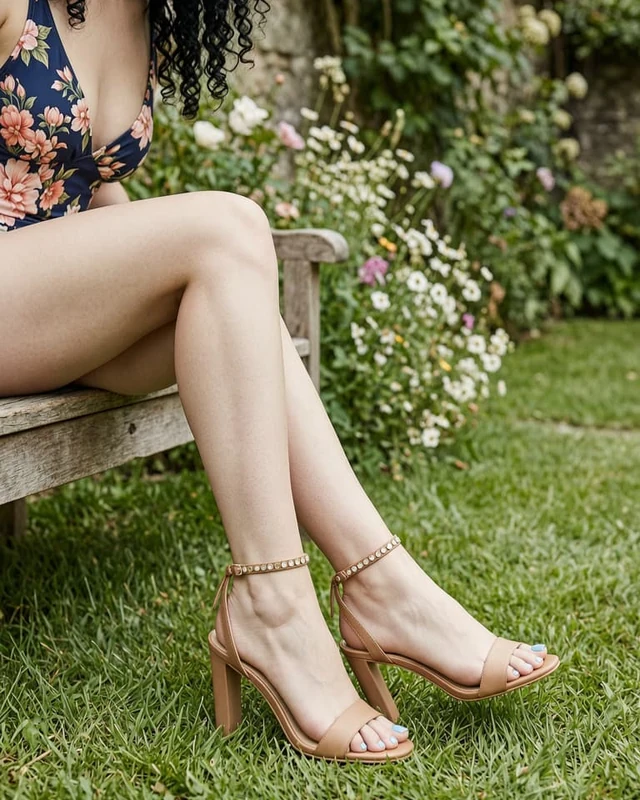
Side profile of adult feet wearing tan ankle-strap heeled sandals outdoors, natural afternoon daylight, clear arch pitch and toe box fit.
Anime TurnaroundAnime character-design sheet reference with bare adult feet in a grounded stance, clean ink outlines, two-tone cel shading, and balanced five-toe spacing.
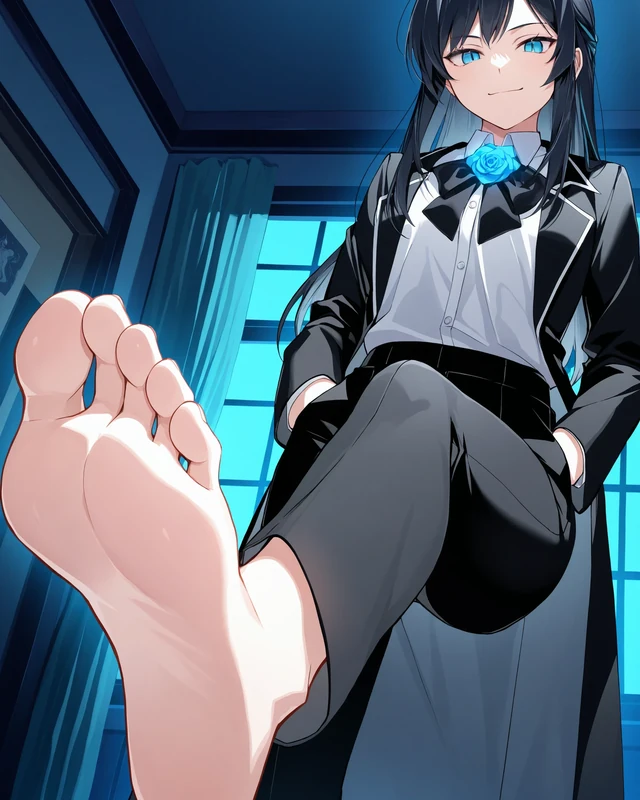 Foreshortened Anime
Anime character illustration with one foreground foot in low-angle perspective, crisp cel-shaded linework, cool window rim light, and clean five-toe separation.
Build every reference in AI Feet Generator around a concrete drawing decision—from weight transfer and ankle lighting to open-toe sandal straps—at 1K, 2K, or 4K PNG.
Describe one planted foot and a raised heel with visible floor contact so the arch, ankle tendon, and weight-bearing toes read clearly in figure drawing.
Specify open-toe sandals, strap placement, and heel pitch to compare footwear proportions and arch support before finalizing concept sketches or lookbook boards.
Switch to Anime style in our anime feet generator mode for clean ink contours, cel shading, and clear five-toe separation on character sheets.
Keep your prompt steady while shifting daylight from front to side so you can compare cast shadows around the instep, heel, and ankle bones.
Open AI Feet Generator and describe the viewpoint, weight transfer, and lighting—or click any gallery prompt to fill the workbench instantly.
Choose Realistic or Anime style, pick a pose preset (Standing, Stepping, Pointed, or From prompt), and set your aspect ratio (1:1, 3:4, 2:3, 4:3, 3:2, or 16:9) and resolution (1K, 2K, or 4K).
Sign in and check the displayed credit cost (40–80 credits). When the PNG is ready, inspect the toes, floor contact, and silhouette before downloading without a site watermark.
AI Feet Generator works from a text prompt alone—no image upload is required or accepted on this page. Name the pose, viewing angle, lighting, and setting, then choose Realistic or Anime style; to edit an existing photo, use AI Feet Fixer instead.
Specify the sole view and camera height directly in your prompt, and select From prompt so a standing preset does not override the angle. State whether the ankle is pointed or relaxed and whether the toes rest against a surface.
Choose from six aspect ratios—1:1 square for an isolated foot study, 3:4 or 2:3 portrait to keep the ankle and lower calf, and 4:3, 3:2, or 16:9 widescreen for two feet in a walking step. Match your crop description to the selected ratio so toes stay inside the frame.
Yes—request a single clear viewing angle against a neutral background so your AI feet pics drop straight onto a character turnaround sheet. Reuse the same lighting notes while switching the camera angle for extra views, noting that separate renders may vary slightly.
Every PNG generation costs 40 credits at 1K, 50 credits at 2K, or 80 credits at 4K, and new accounts receive 80 welcome credits to test drafts first. Preview framing at 1K before exporting a watermark-free 4K final.
Overlapping feet, heavy shadows, and extreme close-ups can cause missing or merged toes in any AI feet render. Try a clearer three-quarter angle with space between the feet, review anatomy before publishing, or repair a single toe locally in AI Feet Fixer.